 PAM
Privileged access management for MSPs
Take local admin rights away. Keep your clients working.
PAM runs the one program a user needs as administrator, on a rule you wrote or a yes from your phone. Nobody is handed an admin password, and every client you manage sits in one portal.
- $0.10 per active computer a month
- First 10 computers free
- No card, no sales call
One request, start to finish
Someone needs a printer driver. This is everything that happens.
-
09:14:02
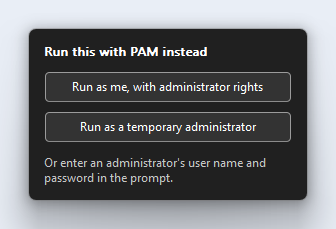
Windows asks for an administrator
PAM is already beside the prompt, offering to run the program instead. There is no new habit for the user to learn.
-
09:14:10
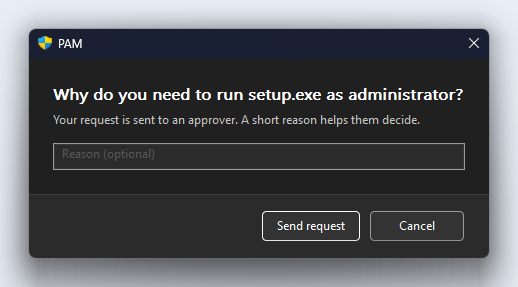
They say why
Your rules do not cover this installer yet, so the user types a reason and sends it. They are never shown a password box.
-
09:14:12
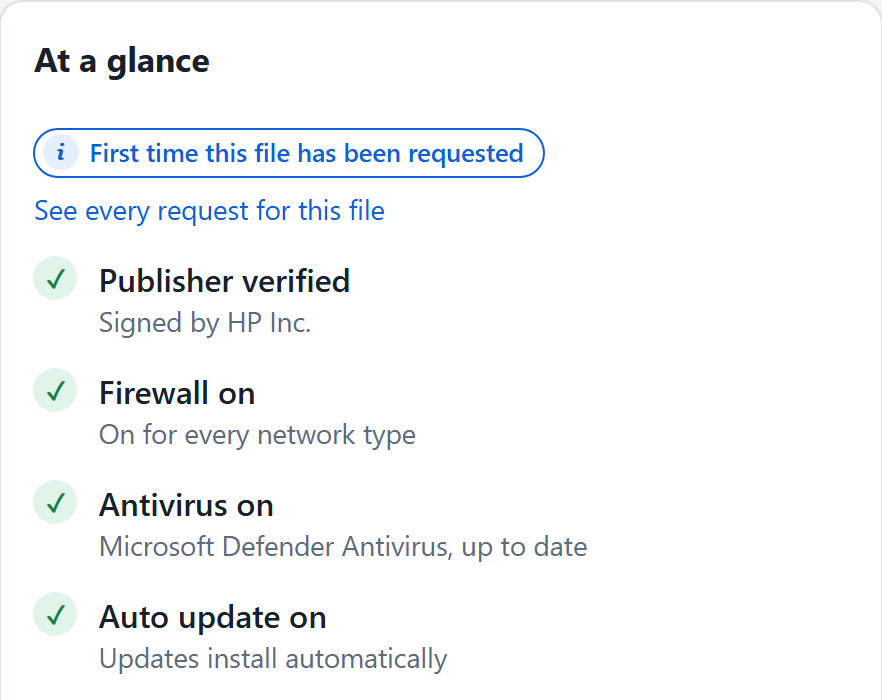
It reaches whoever can approve
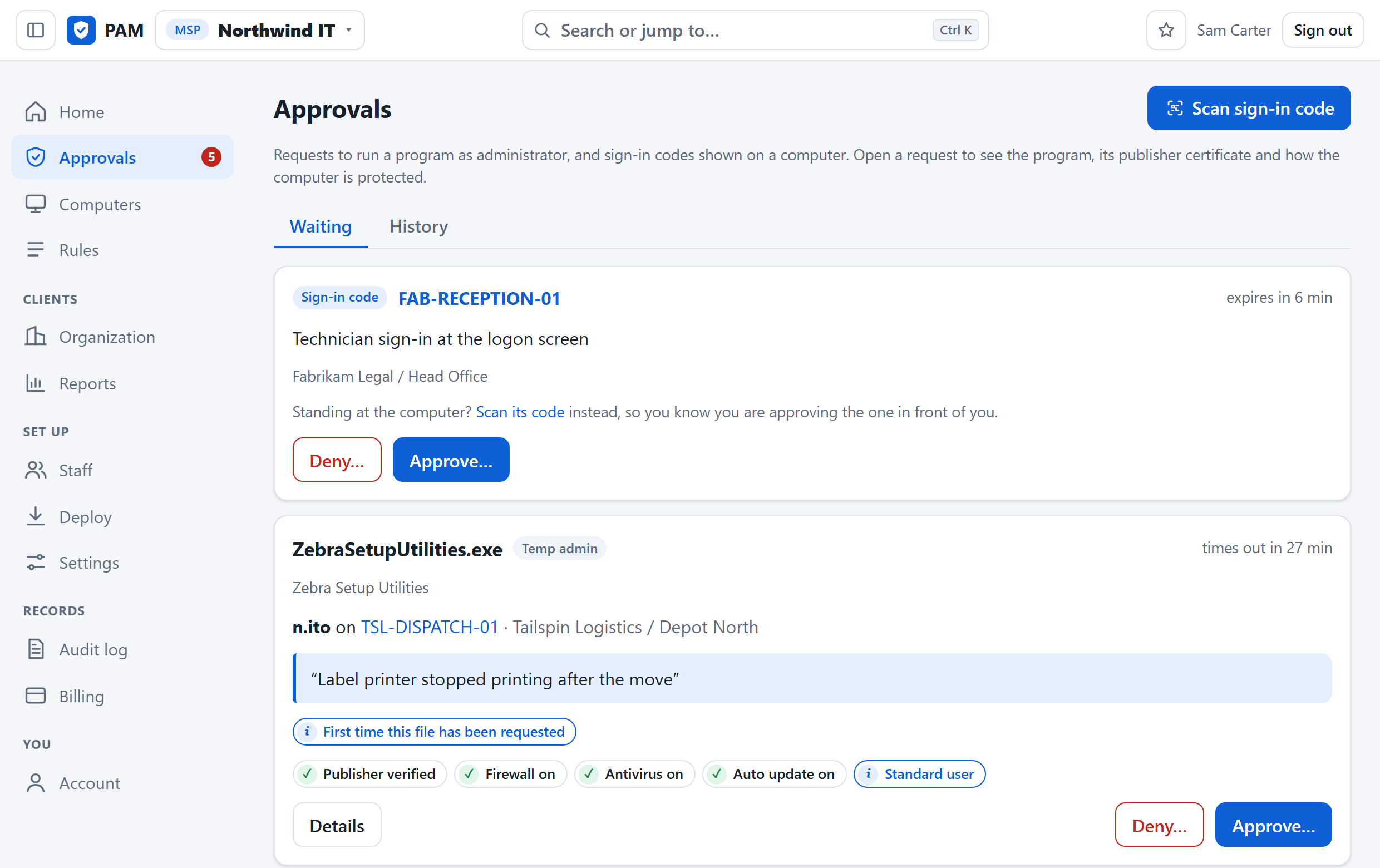
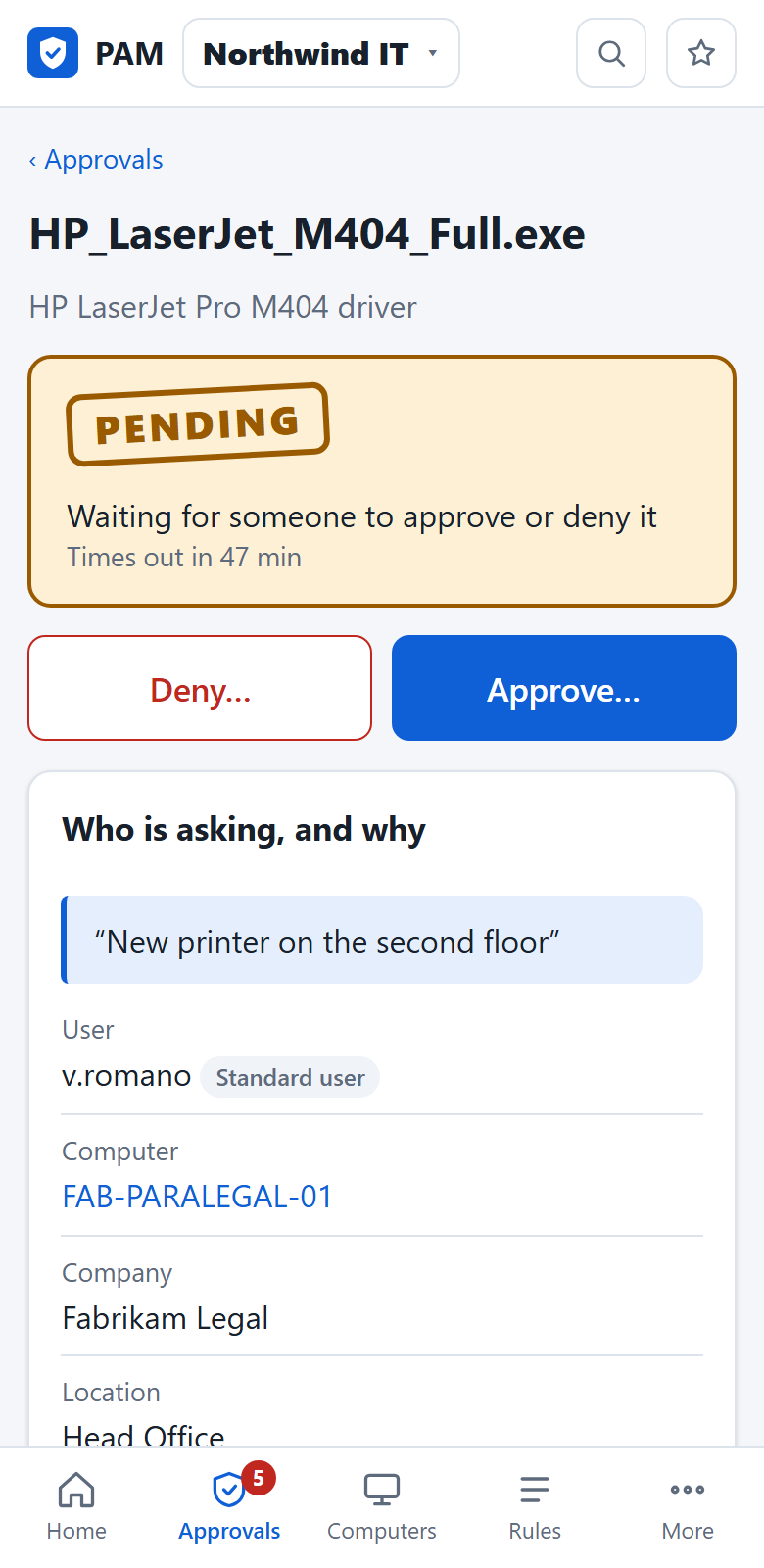
By browser notification, email, Teams or Slack. The request shows who signed the file and whether that PC's firewall and antivirus are on.
-
09:14:41
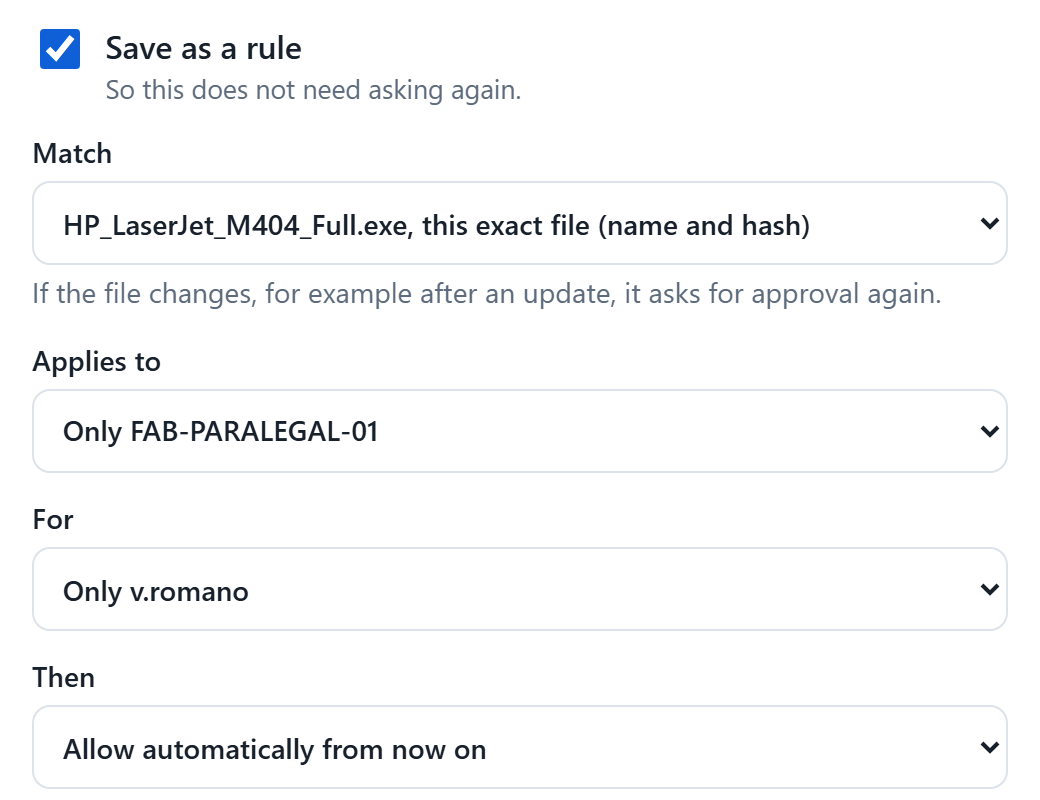
One yes, and it runs
The installer runs as a throwaway administrator account that is deleted afterwards. Tick one box and the decision is a rule, so nobody has to ask again.
The times are an example. Every step is kept in the audit log, on the computer and in the portal.
On the client's computer
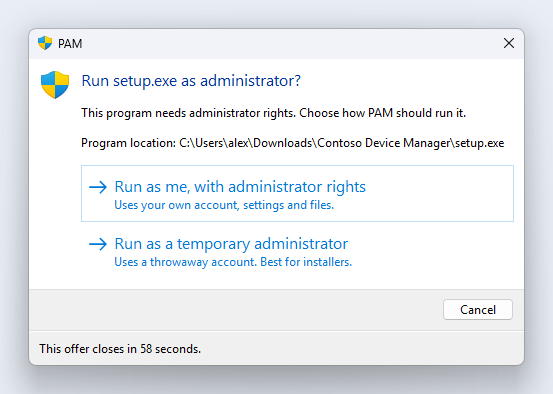
Quiet until someone needs it
A small agent that appears only when a program needs administrator rights, and speaks plain English when it does.
In your portal
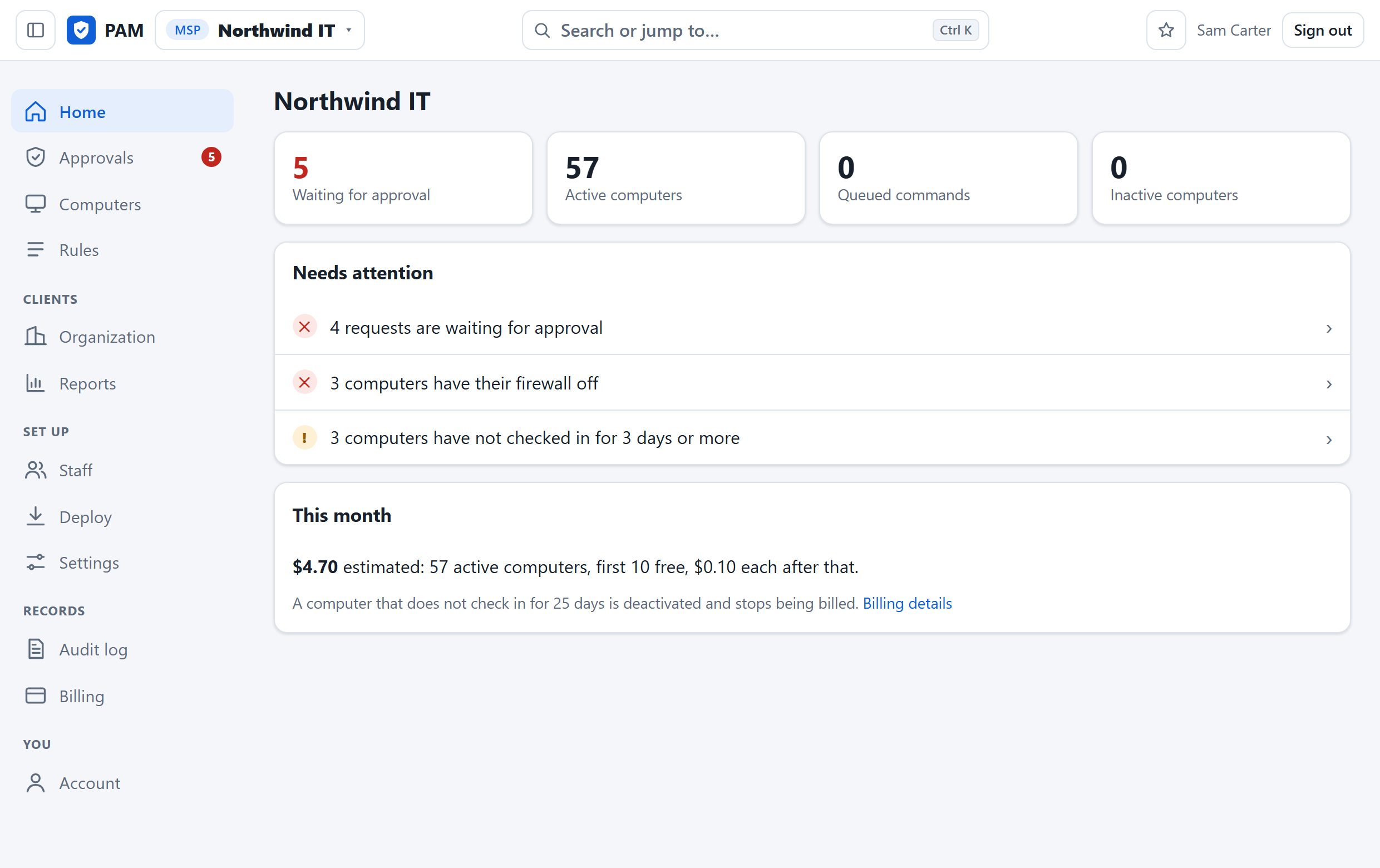
Every client in one queue
What needs you today, across every company you manage: requests waiting, PCs with the firewall off, computers gone quiet.
Made for MSPs
It is organised the way your business is.
Not an enterprise tool with tenants bolted on. Clients, sites and technicians are what it is made of.
- tenancy
- MSP, client, site, computer. Rules, staff and reports attach at any of the four. Give a technician everything, one client, one site or a single PC.
- deploy
- One command from your RMM. It installs the agent and files the computer under the right client and site. The same script serves every client.
- rules
- Allow, deny or ask first. By publisher, path, file hash, arguments or user. The most specific place decides: a PC's own rule beats its site's, its client's and yours.
- approvals
- From a phone, in a browser. No app to install. Only the people who can approve for that client are told.
- tickets
- Your PSA keeps the record too. Every approved or denied request can open a ticket in ConnectWise PSA, Autotask or HaloPSA.
- on site
- Technicians sign in with a QR code. Scan the code on the Windows sign-in screen and you are in as a temporary administrator. There is no shared admin password to rotate.
- handover
- Clients can change hands. When one moves to another MSP, both owners agree and the company moves with its computers and rules. Nothing is reinstalled.
What your client receives
Show every client what they are paying you for.
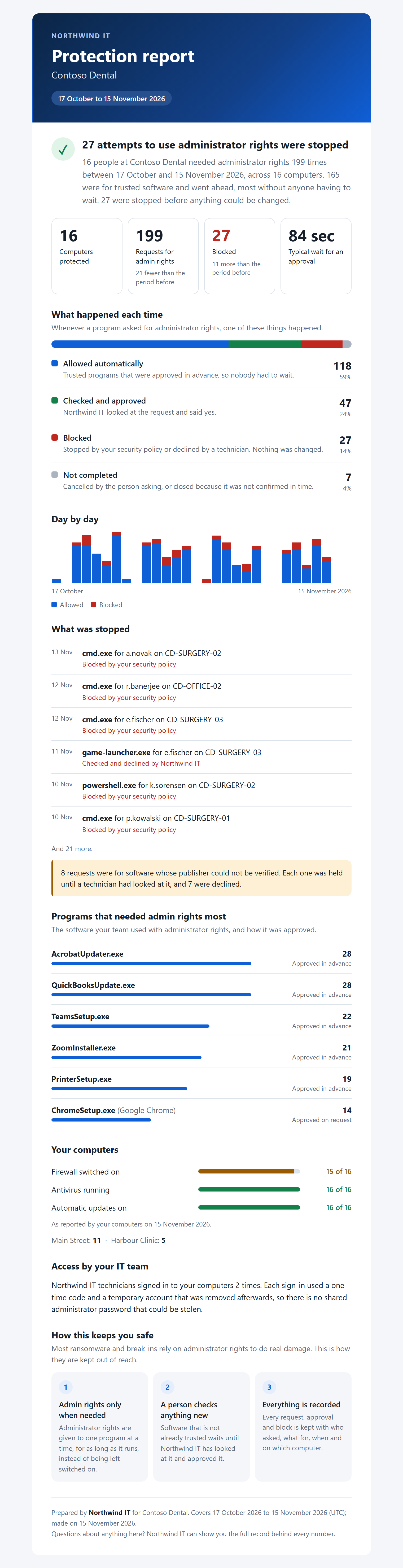
Security work is invisible when it goes well. PAM writes it up for you: a plain-language protection report for each client, under your name.
- What was allowed, what was stopped, and why
- How their computers are protected today
- Your logo and your reply address
- Emailed every week, month or quarter, or printed for the review meeting
- The price is on this page. You are not asked to book a demo to learn it.
- Every feature is included. Staff accounts, clients and sites are not counted or charged for.
- Your first 10 computers are free. Enough to run it on your own office first.
- Only computers in use are billed. One that has not checked in for 25 days stops counting on its own.
Before you ask
The questions every MSP starts with.
All the questionsWill my clients' staff put up with it?
They meet it where they already are: at the Windows administrator prompt. Software you have allowed by rule simply runs. For anything else they type a reason and carry on working while someone decides.
How long does it take to roll out to a client?
As long as it takes your RMM to run one PowerShell command. The command names the client and the site, so each computer files itself in the right place.
What happens when a laptop is offline?
Its rules are kept on the computer, signed, so everything you allowed or denied still applies. Only requests that need a person wait for a connection.
Does anyone ever learn an administrator password?
No. There is none to learn. A program runs with the user's own account raised for that one program, or as a temporary account with a random password that nobody sees and that is deleted when the program closes.
Have your first computer connected today.
There is no call to book and no form to wait on. The account you create is the real thing.
Your first 10 computers are free. No card is asked for.
- 01Create your account. Your MSP's name, your name, an email address and a password.
- 02Add a client and a site. Or start with your own office.
- 03Paste one command into your RMM. The computer appears in the portal when it checks in.