 PAM
For your clients' staff
What the person at the computer sees.
Most of the time, nothing. PAM stays out of the way until a program needs administrator rights, then asks the fewest questions it can.
The moment it appears
It meets them at the prompt they already know.
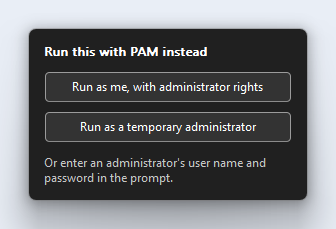
When Windows asks for an administrator's user name and password, a small PAM menu is docked beside the prompt. The user picks from it instead of ringing you.
- Also on the right-click menu in Explorer, as Run with PAM
- Offered on its own when a program you have named starts without the rights it needs
- And as a command,
pam run, for people who live in a terminal
What is raised
One program gets administrator rights. Nothing else does.
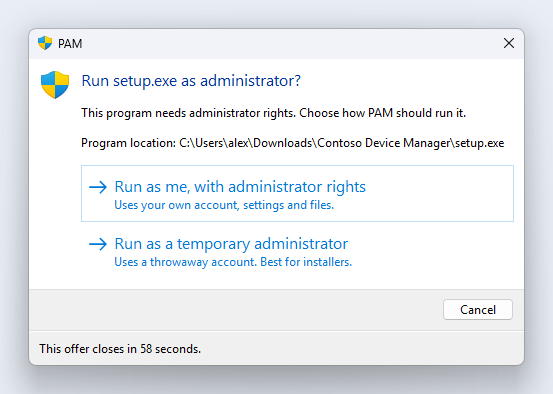
The rest of the user's session stays exactly as it was. You decide by rule which of two ways a program runs, or let the user choose.
- Run as me
- The program runs as the same user, with administrator rights. It sees their own profile, settings and files.
- Run as a temporary administrator
- The program runs as a throwaway local account that is created for this one request and deleted afterwards. Best for installers.
When you want a say
They tell you why. You decide.
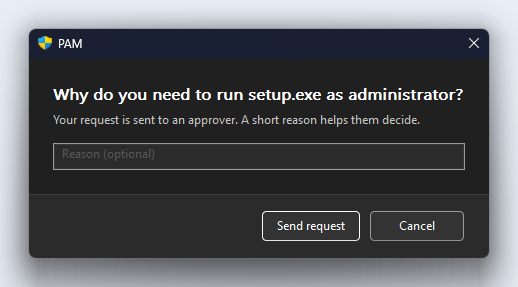
Where your rule says ask first, the user types a short reason and sends it. They carry on working while the request is open, and PAM tells them the moment it is answered.
Closing the window withdraws the request. There is never a password box, because there is no password.
Three ways it can end
The user always knows where they stand.
Your rule allows it
The program simply runs. Nobody waits, nobody is asked, and it is still written to the audit log.
Someone needs to say yes
The request goes to your technicians. When one approves, the program starts on the user's desktop without them doing anything more.
Your rule, or a technician, says no
The user is told plainly that it was not allowed. Nothing on the computer has changed.
What your clients' staff are never given: a password.
- Nothing to write on a sticky note. The temporary account's password is random and no person ever sees it.
- Nothing to reuse on the next PC. Each approval is for one request on one computer.
- Nothing to change when someone leaves. There was never a shared secret to begin with.
For you, on site
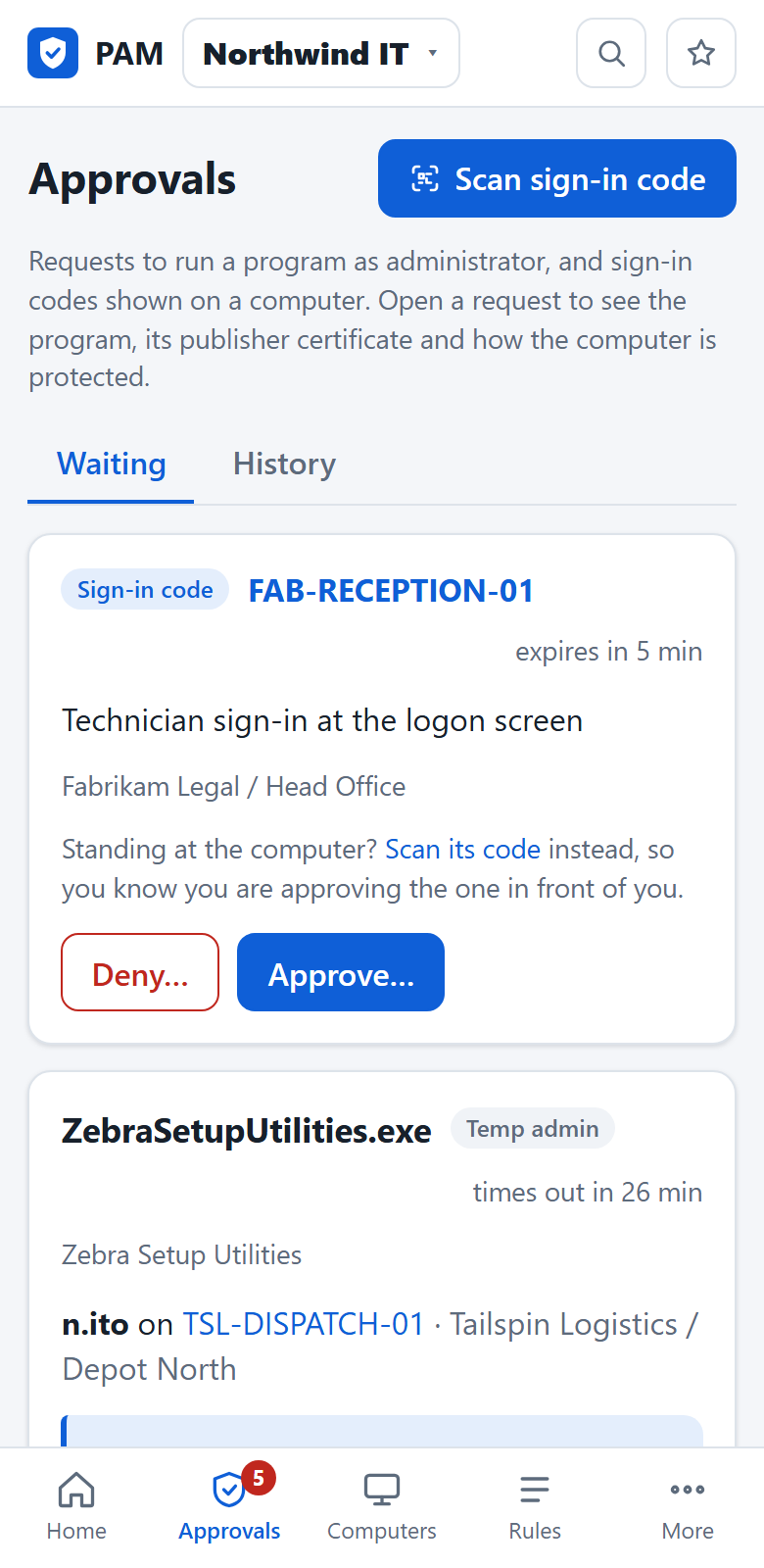
Standing at a client's PC? Sign in with your phone.
A tile on the Windows sign-in screen shows a QR code. Scan it, approve it in the portal, and you are signed in with a temporary administrator account that is removed when you are done.
- No local admin account kept on every machine
- No shared password for the whole client
- Each sign-in is in the audit log, and in the client's report
The small print
What you will want to know before a pilot.
- windows
- Windows 10 (22H2) and Windows 11. A Windows service, a small tray app for each signed-in user, and a tile on the sign-in screen.
- accounts
- Local, domain and Microsoft Entra ID accounts. For an Entra account, run as me switches to a temporary administrator on its own, because Windows cannot sign that account in a second time without its password. With saved sign-in turned on, the user gives that password once and it runs as them.
- offline
- Rules stay on the computer, signed. A laptop away from the network still allows what you allowed and denies what you denied.
- admin mode
- For the day someone really does need more. Approve a user for a set period, during which their ask-first requests go straight through. It ends on its own.
- time limits
- A rule can cap how long a program runs. When the time is up PAM ends the program and anything it started, and records it.
- installers
- It waits for what an installer starts. Many unpack themselves, start the real installer and exit. PAM follows the whole chain before it cleans up.
Have your first computer connected today.
There is no call to book and no form to wait on. The account you create is the real thing.
Your first 10 computers are free. No card is asked for.
- 01Create your account. Your MSP's name, your name, an email address and a password.
- 02Add a client and a site. Or start with your own office.
- 03Paste one command into your RMM. The computer appears in the portal when it checks in.