 PAM
For your technicians
The portal, page by page.
Every picture here is the product as it is today, filled with sample data. Select any of them to see it full size.
Home
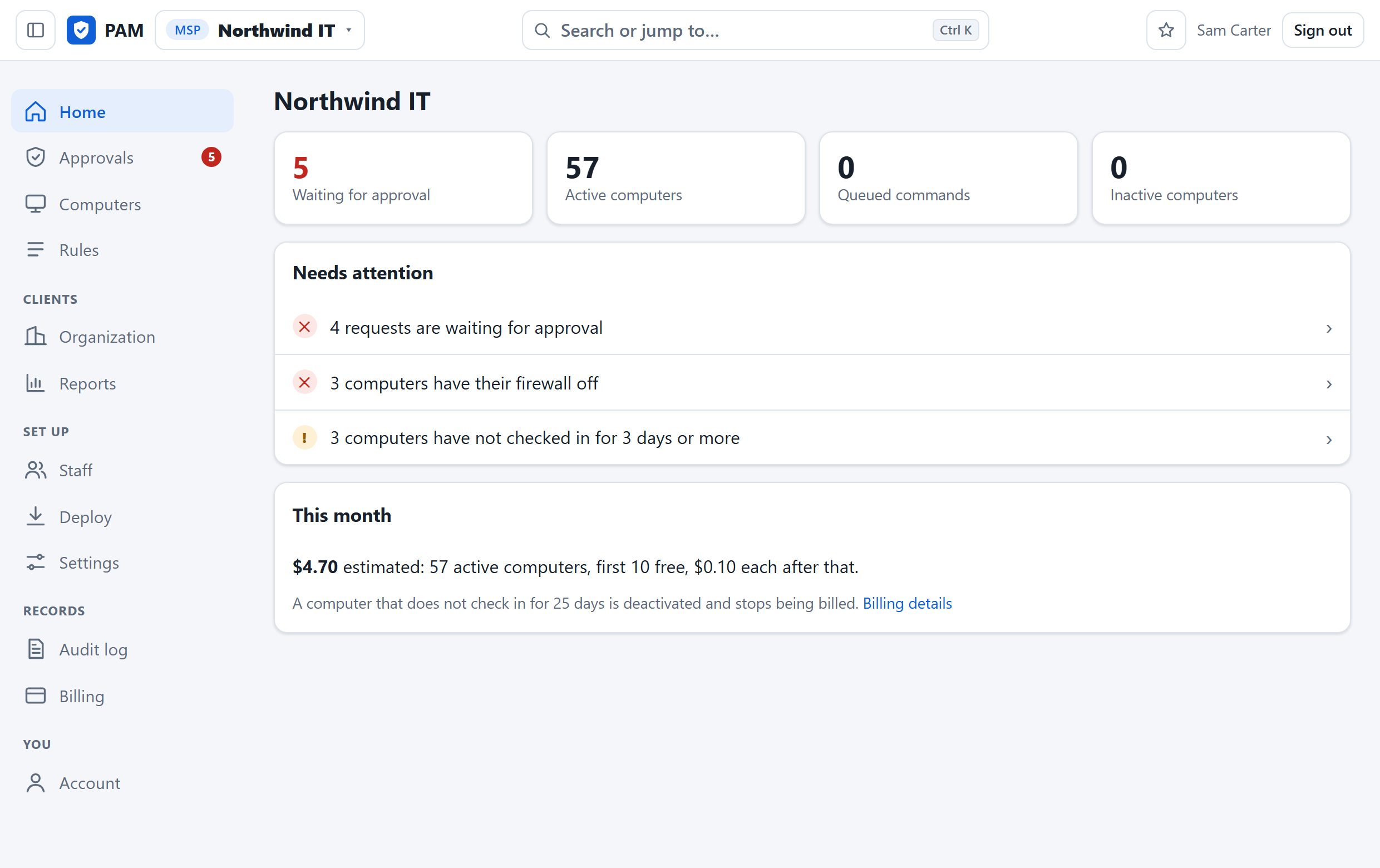
Start the day knowing what needs you.
One list across every client: requests waiting for an answer, computers with the firewall or antivirus off, computers that have gone quiet, old agents, and staff without two-step sign-in.
Each line opens the list of exactly those. Working on one client? Narrow the whole portal to that client or one of its sites from the top bar.
Approvals
Decide with the facts in front of you.
A request is more than a file name. You see who is asking and why, who signed the program, whether this exact file has been asked for before and what was decided then, and how the computer it would run on is protected.
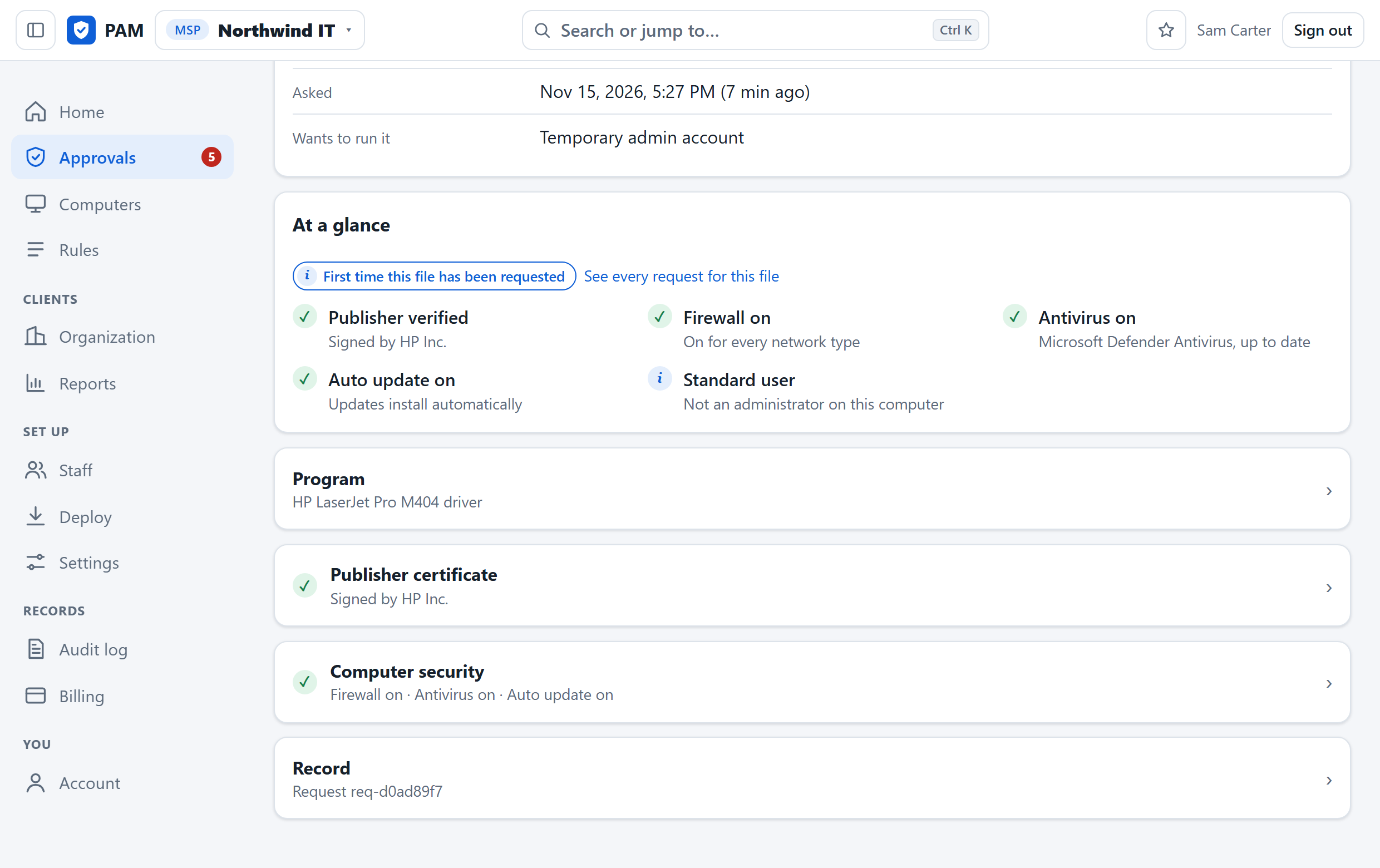
- Approve from anywhere. The portal works on a phone as it does on a desk. Browser notifications say how many requests are waiting, even with the portal closed.
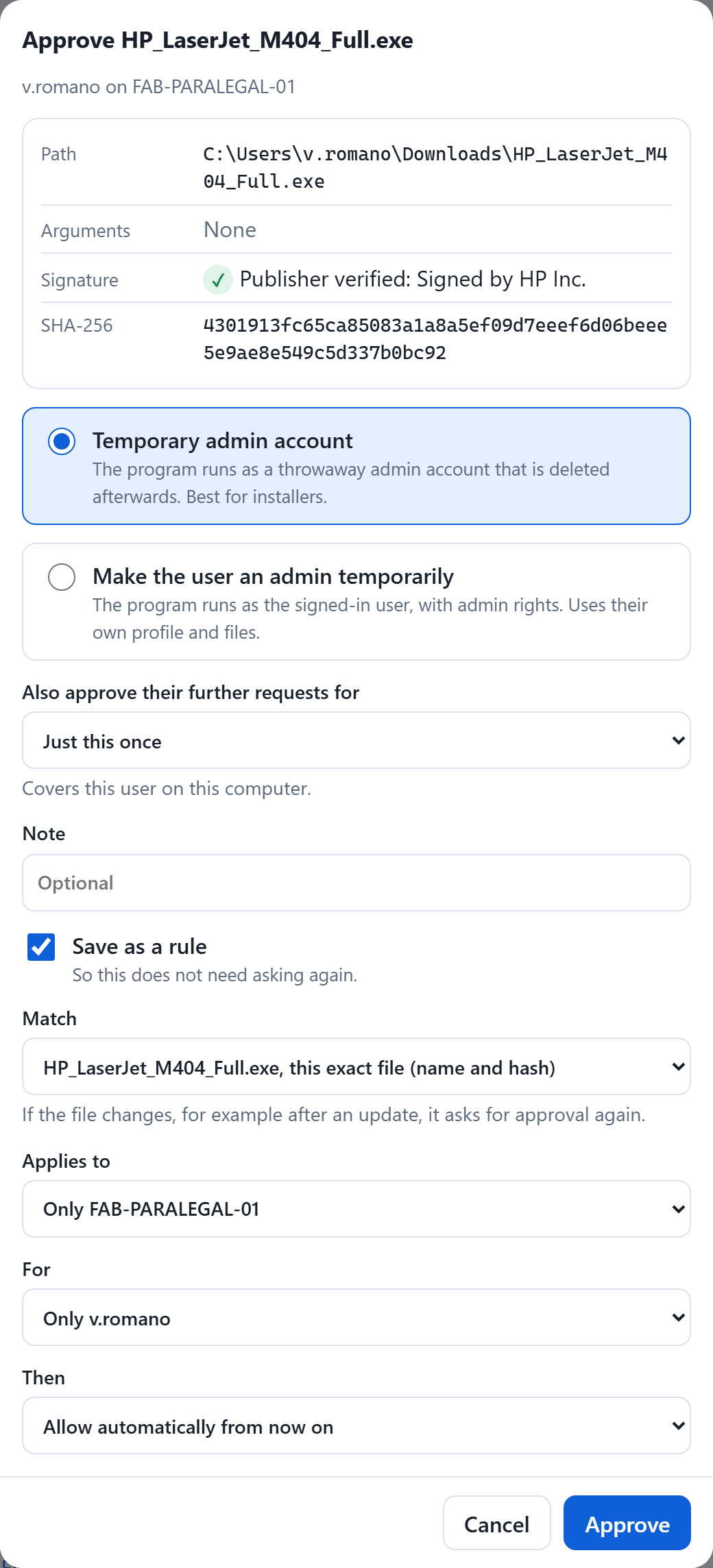
- Choose how it runs. As a temporary admin account, or as the user. Just this once, or for a while.
- Save the decision as a rule. Pinned to the exact file by default, so an approval for one installer is not an approval for whatever replaces it.
- Let the right people know. Email, a Teams or Slack channel, and a ticket in your PSA for every decision.
Rules
Say it once, for everyone or for one PC.
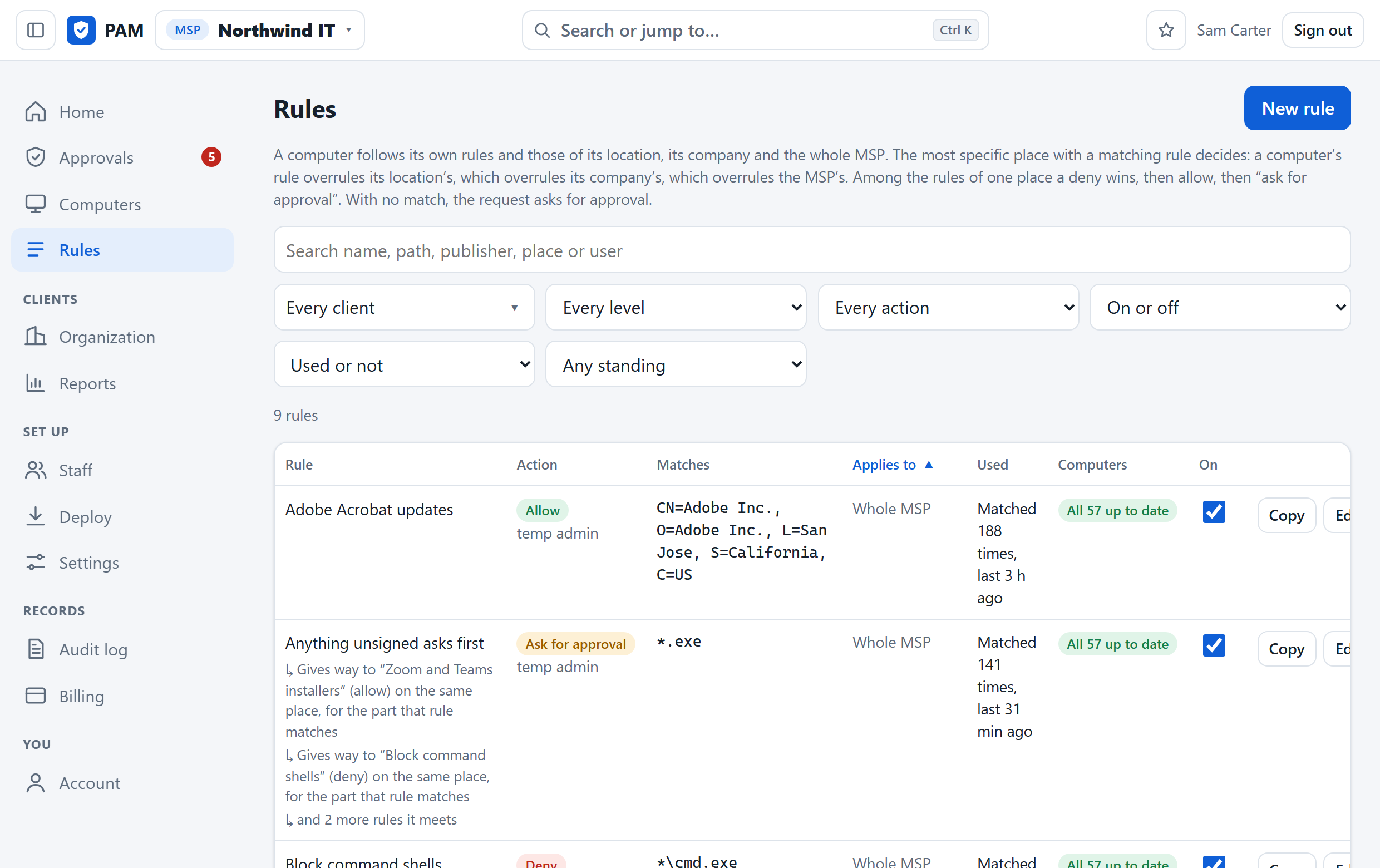
Write a rule for your whole MSP, one client, one site or one computer. The most specific place decides, so a client's exception never needs a copy of your standard set.
The portal tells you which rules never apply, which repeat another, how often each has matched, and how many computers have taken your latest change.
Deploy
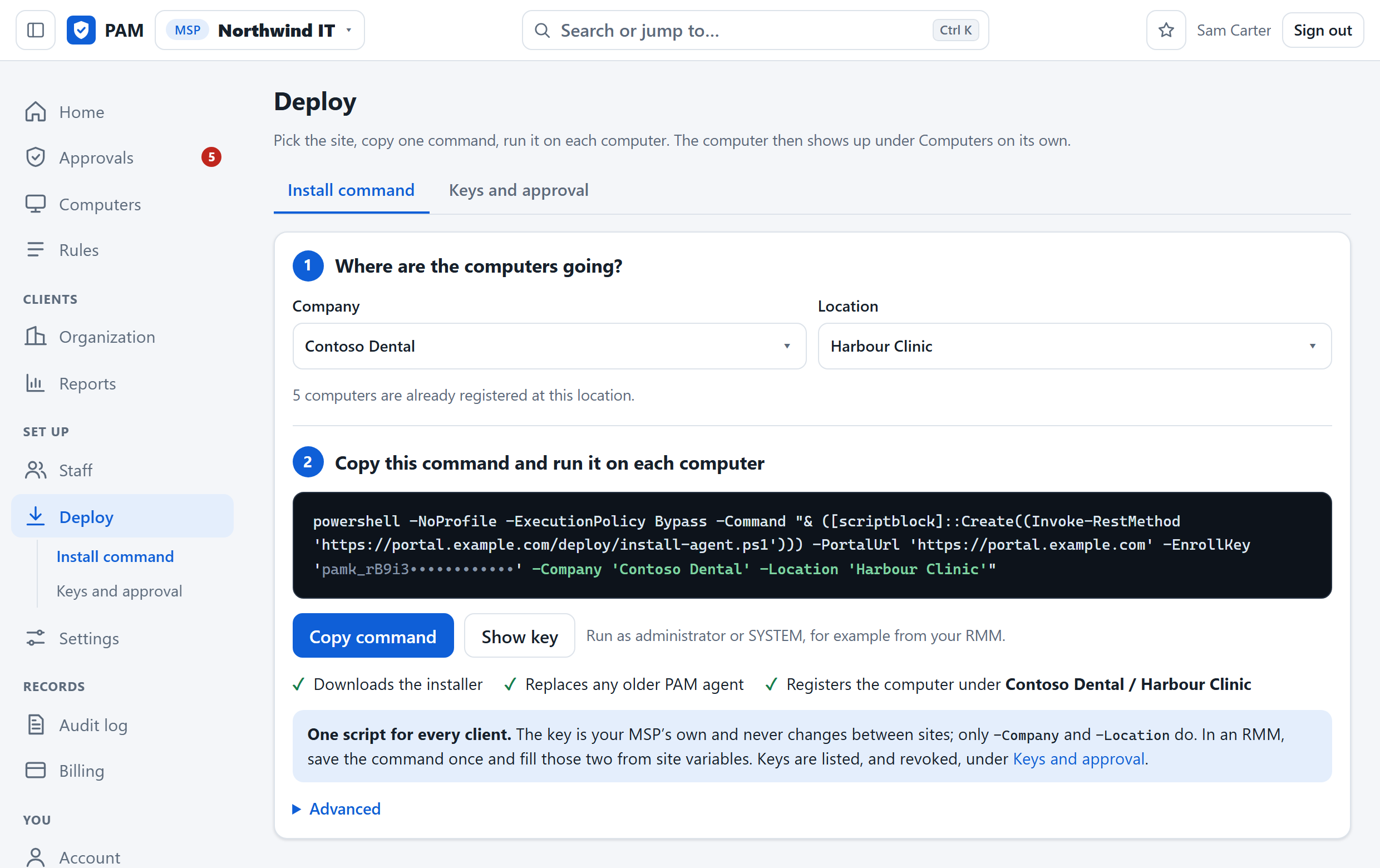
One command, from any RMM.
Pick the client and the site, copy the command, run it as SYSTEM. It downloads the installer, replaces any older agent and registers the computer in the right place.
The key is your MSP's own and never changes between sites, so one saved script serves every client: fill the company and location from your RMM's site variables.
Computers
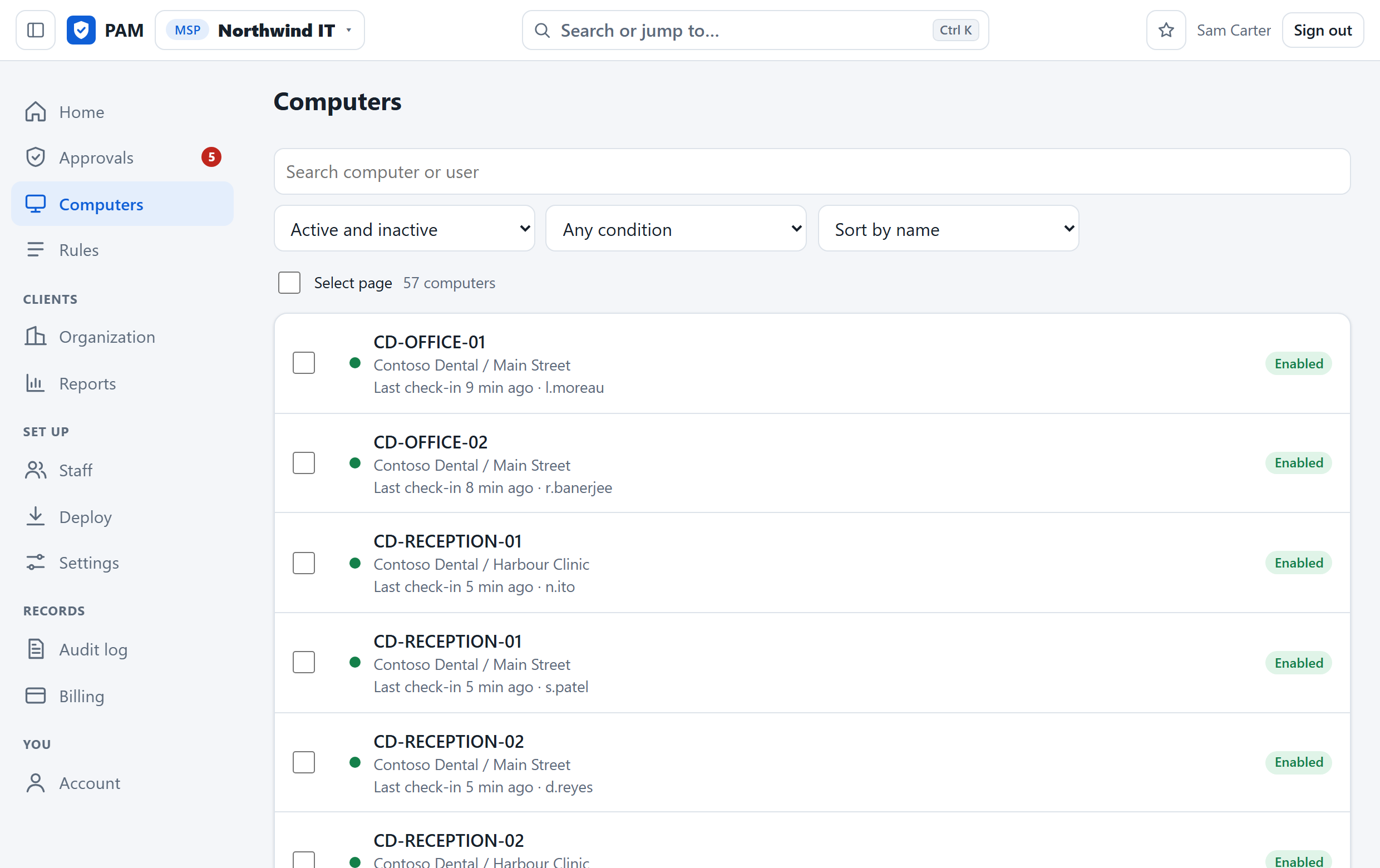
Every PC, its state and its protection.
When each computer last checked in, who is signed in, which Windows and agent it runs, and whether its firewall, antivirus and automatic updates are on.
From the same page: disable PAM on a computer, put it in admin mode for a while, update its agent or uninstall it.
Audit log
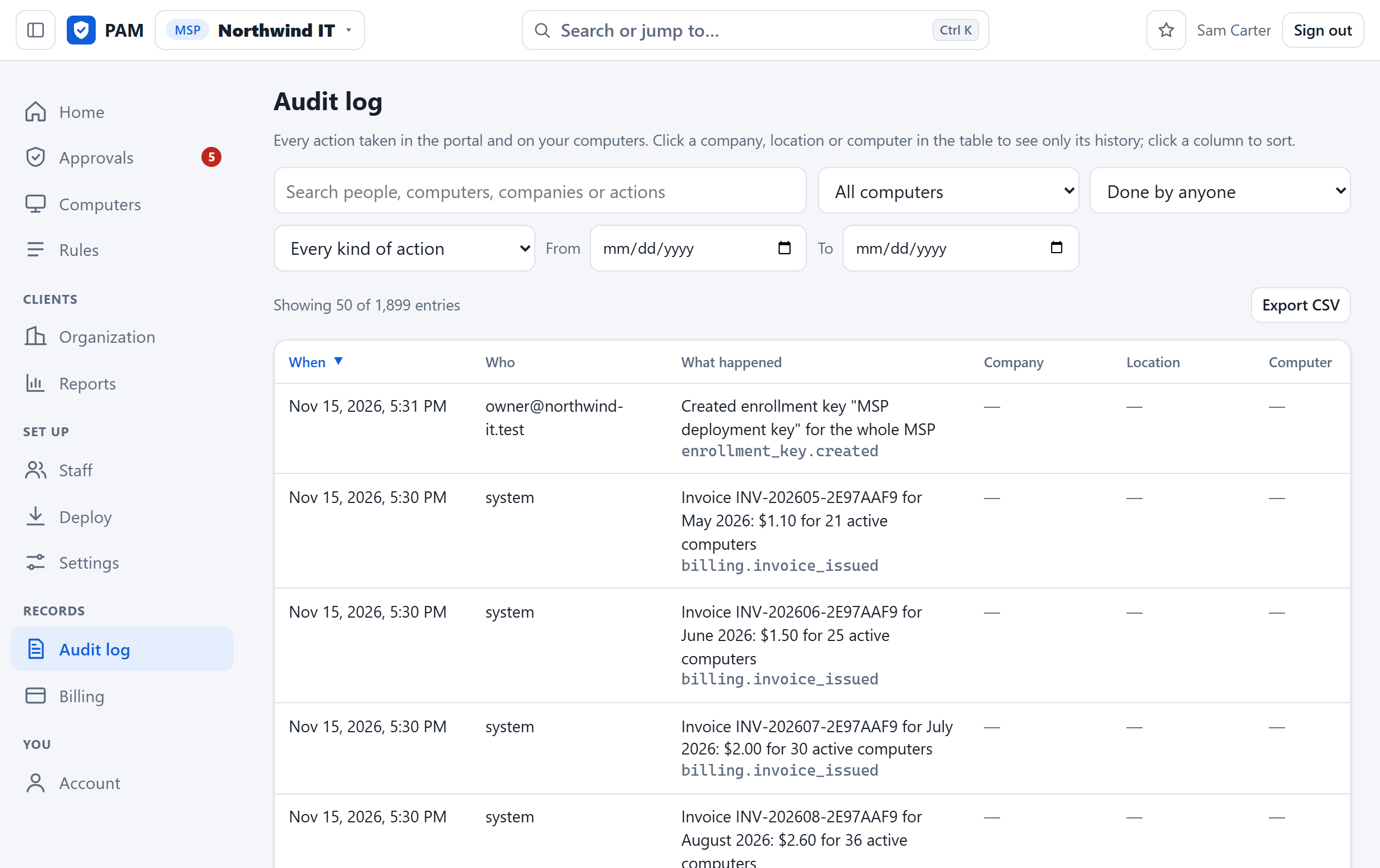
Who asked, who approved, what ran.
Everything done in the portal and everything that happened on the computers, in one record. Filter it by client, site, computer, person or date when an insurer, an auditor or the client asks.
Client reports
The page your client reads.
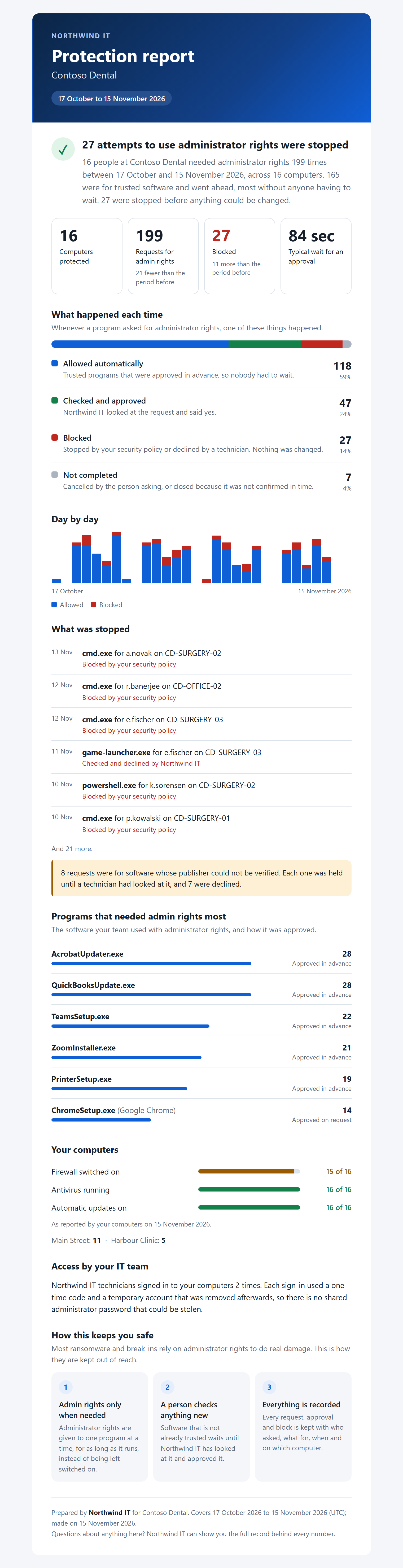
A protection report for each company, written for the person who signs your invoice and not for an engineer.
- How many attempts to use administrator rights were stopped
- What was allowed in advance, what a person checked, what was blocked
- Which programs needed admin rights most
- Firewall, antivirus and updates across their computers
- Every time your technicians signed in to their machines
Preview it, print it or save it as a PDF, email it on the spot, or have it sent every week, month or quarter with your logo and a reply address of your choosing.
Staff
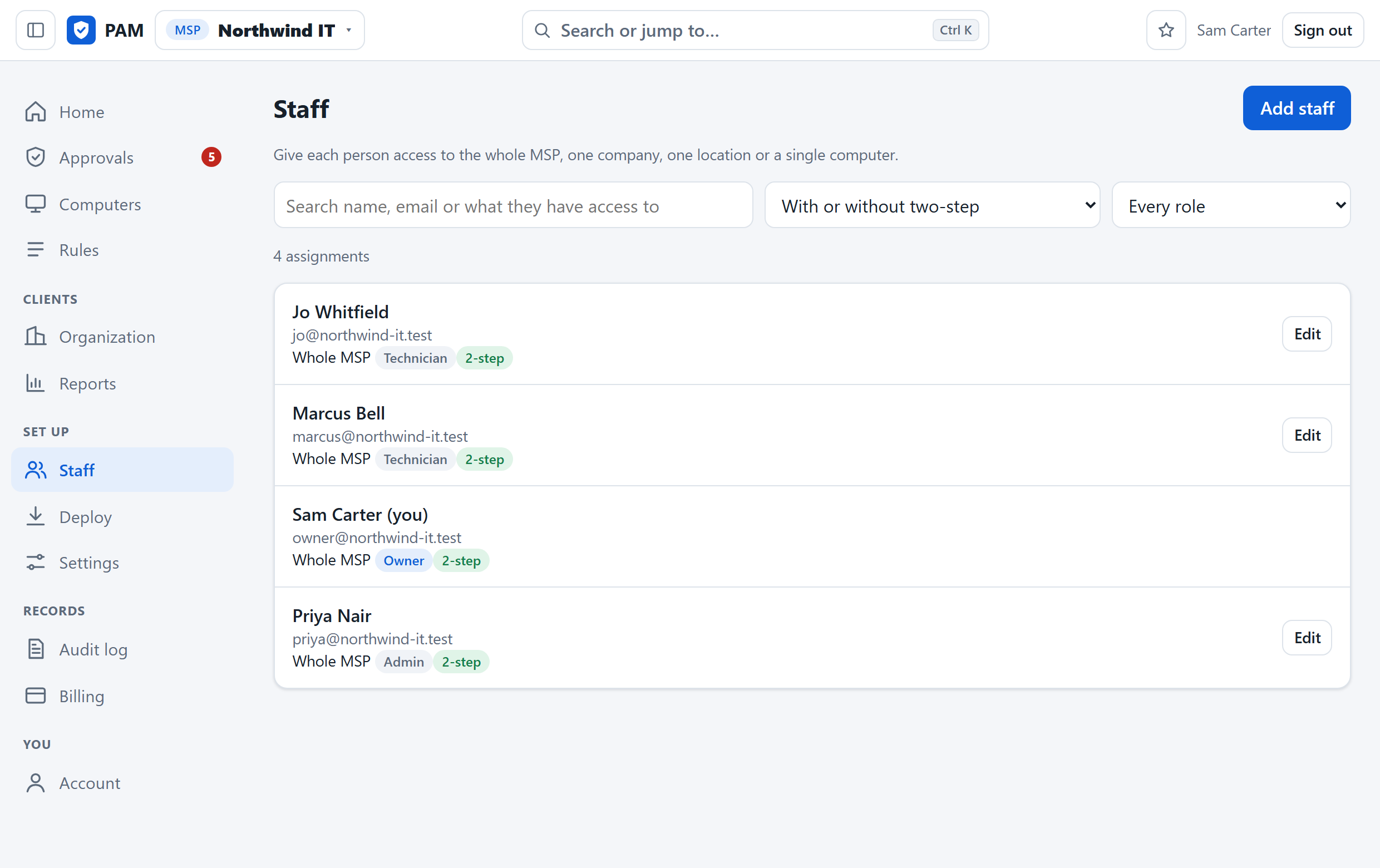
Give each person exactly their patch.
Viewer, technician, admin or owner, for the whole MSP, one client, one site or one computer. A client's own IT person can approve for their company and see nothing of anyone else's.
Require two-step sign-in of everyone with one switch, and let staff sign in with their Microsoft work account.
Billing
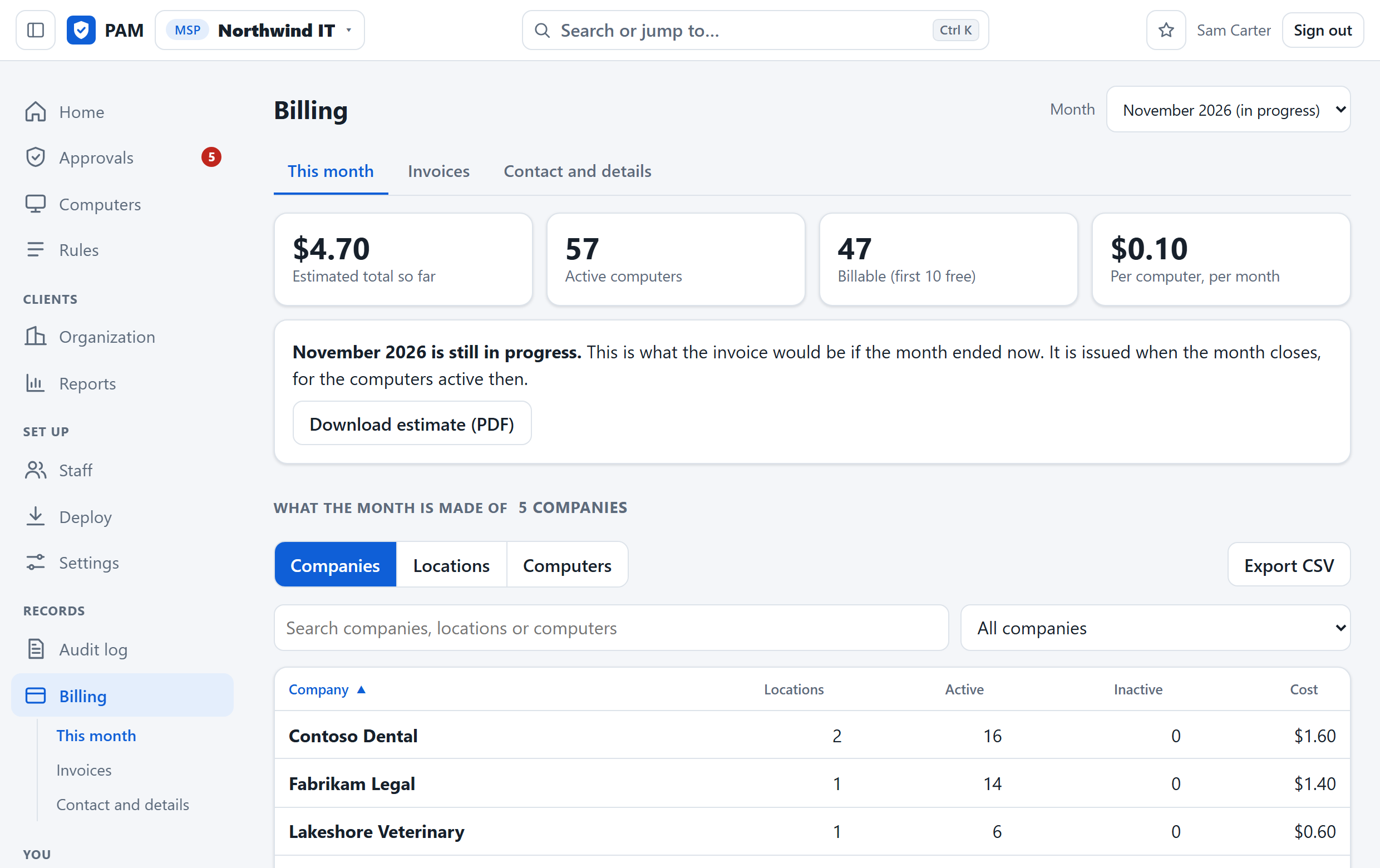
A bill you can pass straight on.
What the month costs, by client, by site and by computer, while the month is still running. Export it as a spreadsheet for your own invoicing.
Every closed month has an invoice as a PDF, emailed to the addresses you list.
Works with what you run
It fits the tools already on your desk.
- RMM
- Anything that can run a PowerShell command as SYSTEM
- PSA tickets
- ConnectWise PSA, Autotask, HaloPSA
- Alerts
- Email, Microsoft Teams, Slack, browser and phone notifications
- Sign-in
- Password with two-step codes, or a Microsoft work account
Have your first computer connected today.
There is no call to book and no form to wait on. The account you create is the real thing.
Your first 10 computers are free. No card is asked for.
- 01Create your account. Your MSP's name, your name, an email address and a password.
- 02Add a client and a site. Or start with your own office.
- 03Paste one command into your RMM. The computer appears in the portal when it checks in.